Set up your cameras, find your recordings, or troubleshoot a connection.
Getting started
Connect your first camera.
Start with one camera and confirm its live picture before adding more. Follow the numbered screenshots; select any image to enlarge it.
Have these ready
A powered-on camera that supports RTSP or RTSPS, and a Windows PC on the same local network. A picture in the camera’s phone app does not by itself confirm compatibility. Check your camera and PC requirements.
Enable your camera’s stream.
Follow the manufacturer’s instructions for your exact model and firmware to enable RTSP or RTSPS. Have its stream address and camera login ready. Find the camera-specific setup guides.
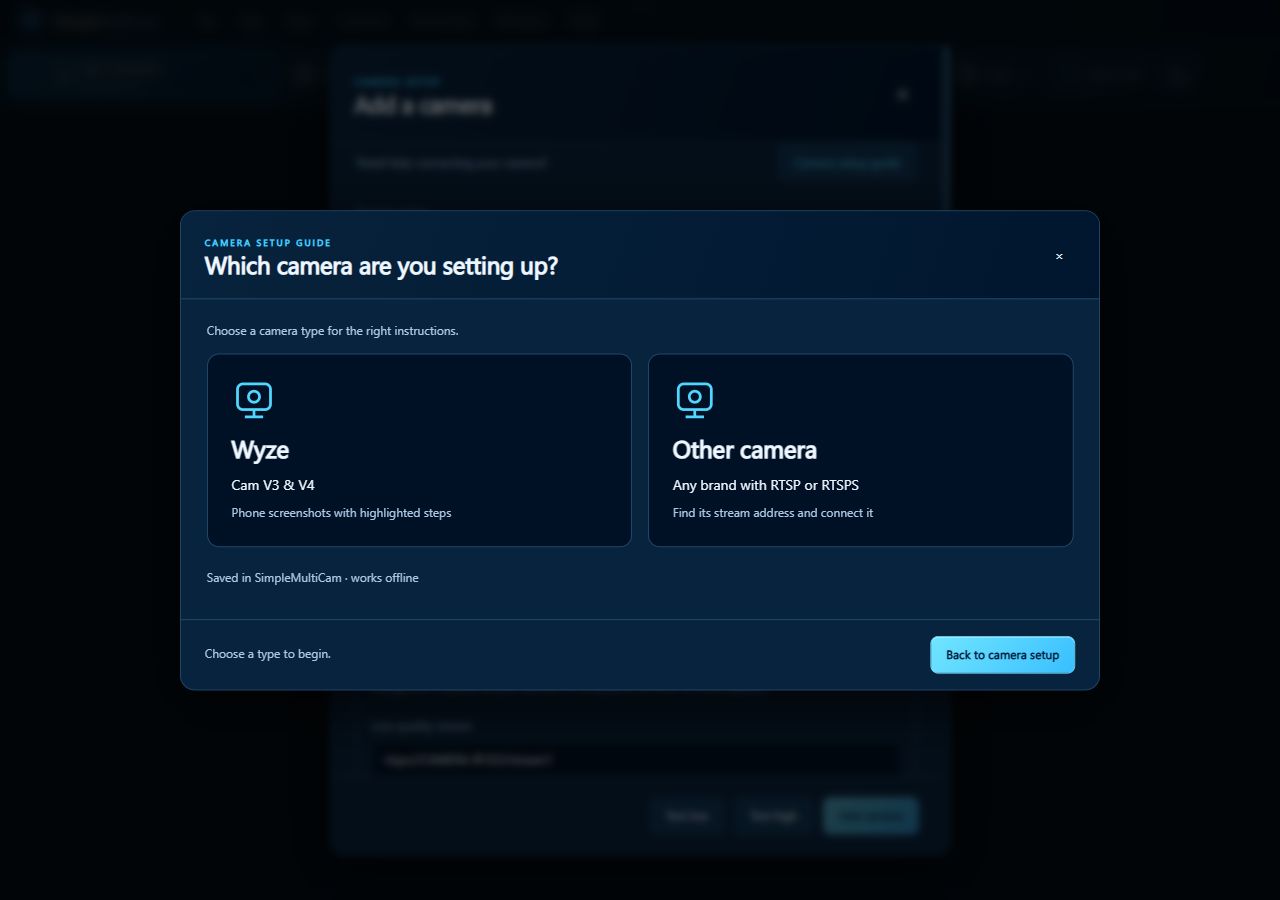
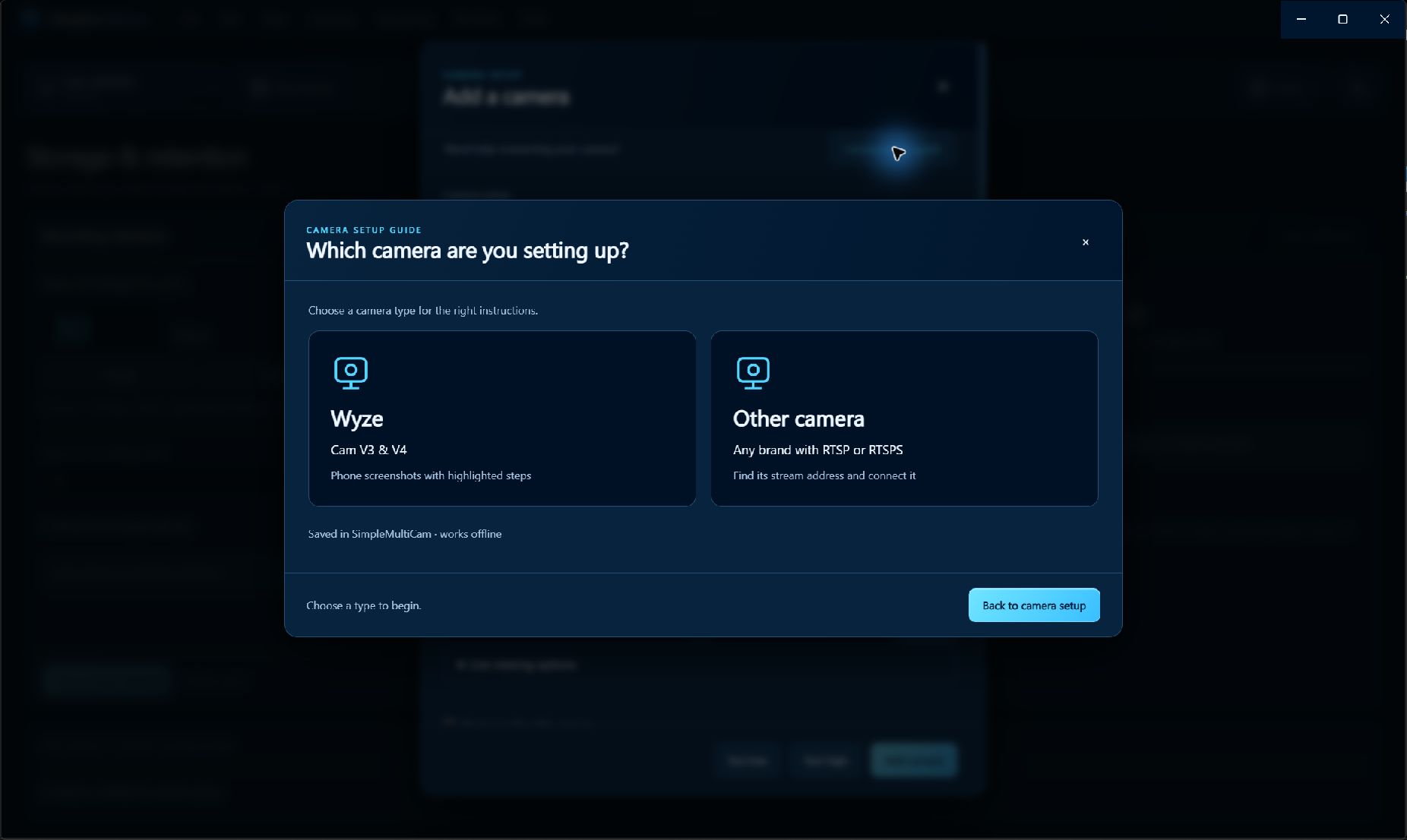
Choose the guide for your camera. This example uses Other camera; Wyze instructions apply only to the matching model and firmware. 0.3.81 interface · isolated sample setupView full camera-guide screenshot
Open Add camera.
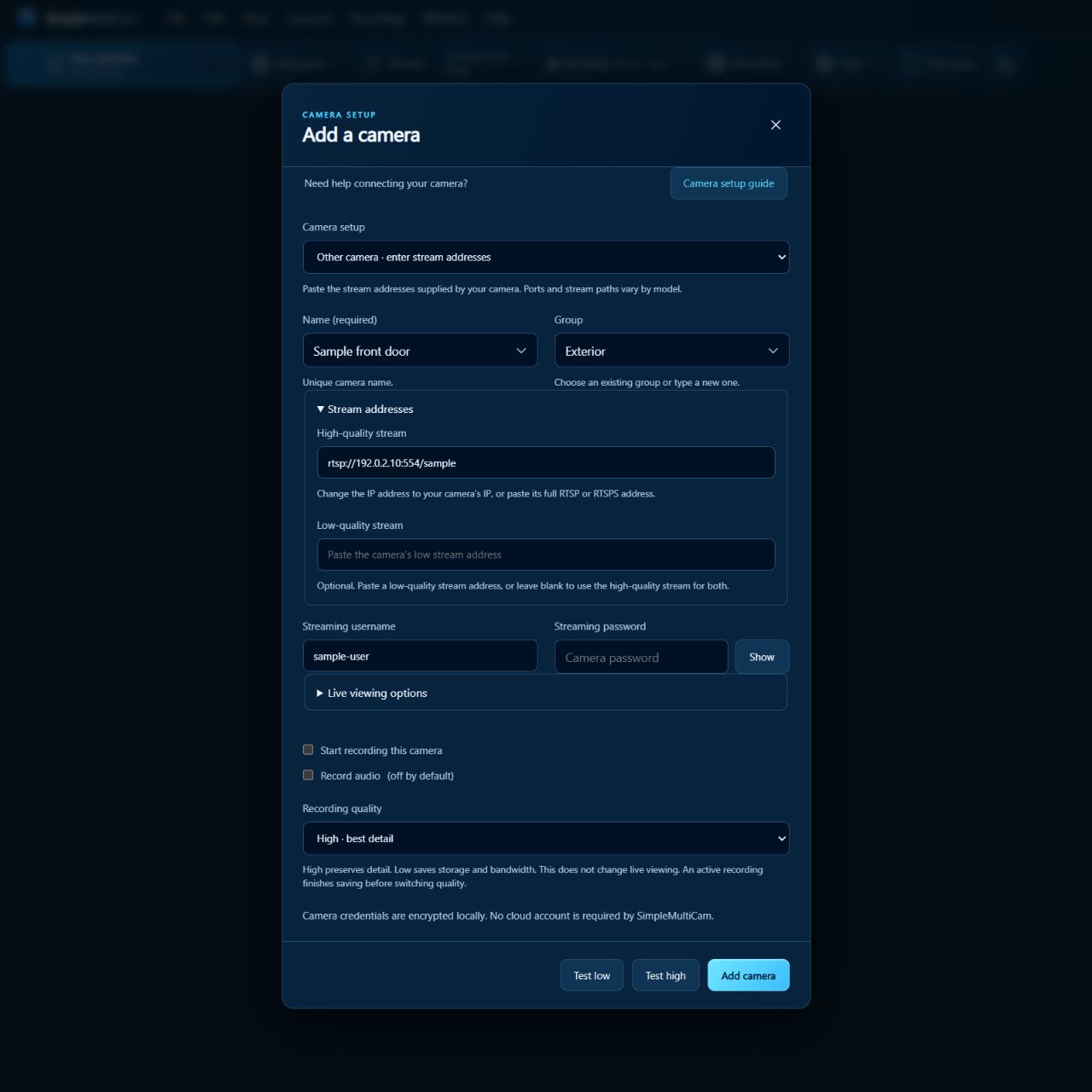
In SimpleMultiCam, choose Add camera. Under Camera setup, choose Other camera, or Wyze defaults when its guide matches your setup. Give it a unique Name.
For Other camera, paste the supplied High-quality stream address. A separate Low-quality stream is optional. For Wyze defaults, follow the guide for the camera IP. Enter its RTSP login in Streaming username and Streaming password. Wyze’s stream login is separate from your Wyze account.
Illustrative values only. Use the stream address and login supplied for your own camera. No camera was connected. 0.3.81 interface · isolated sample setupView full Add camera screenshot
Check both pictures.
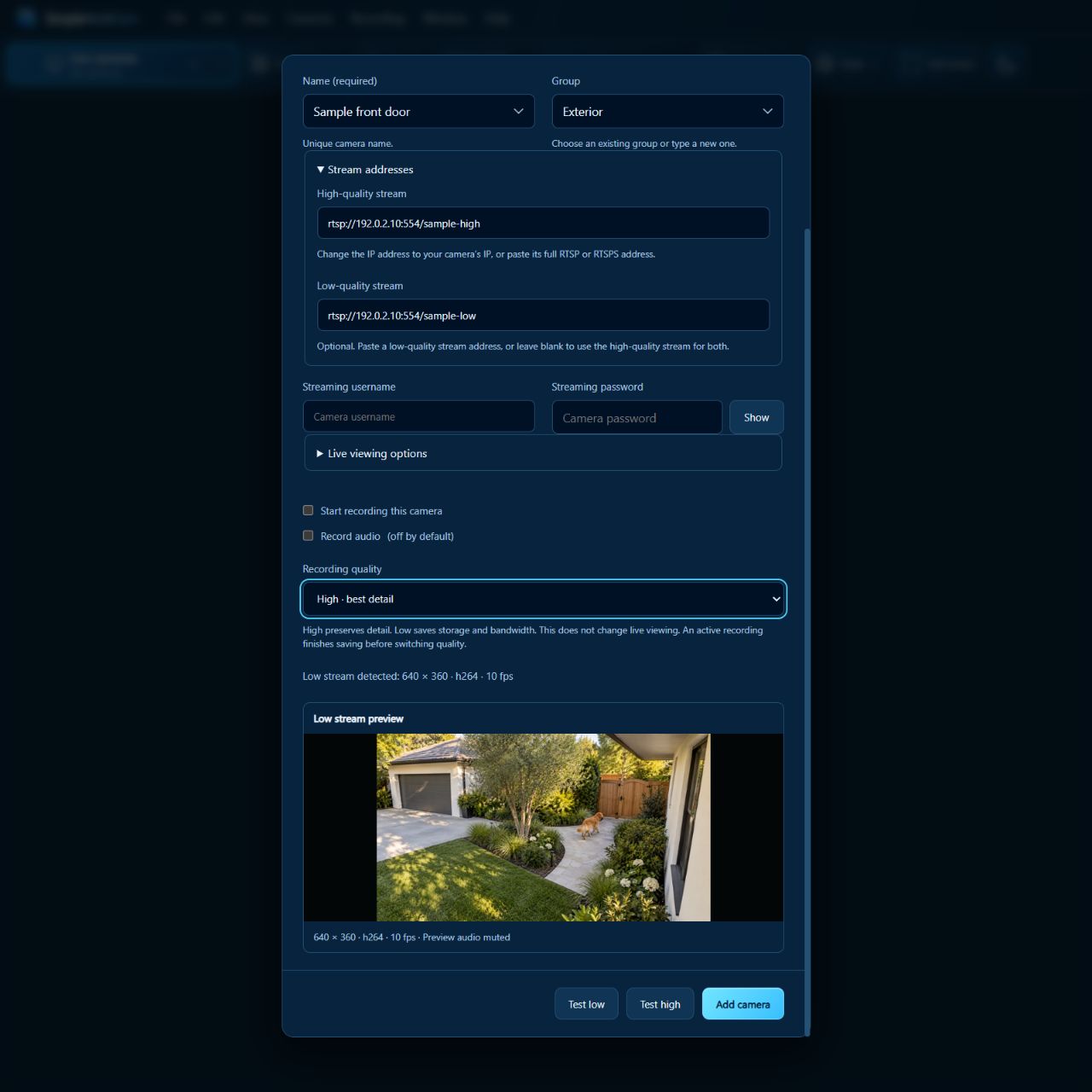
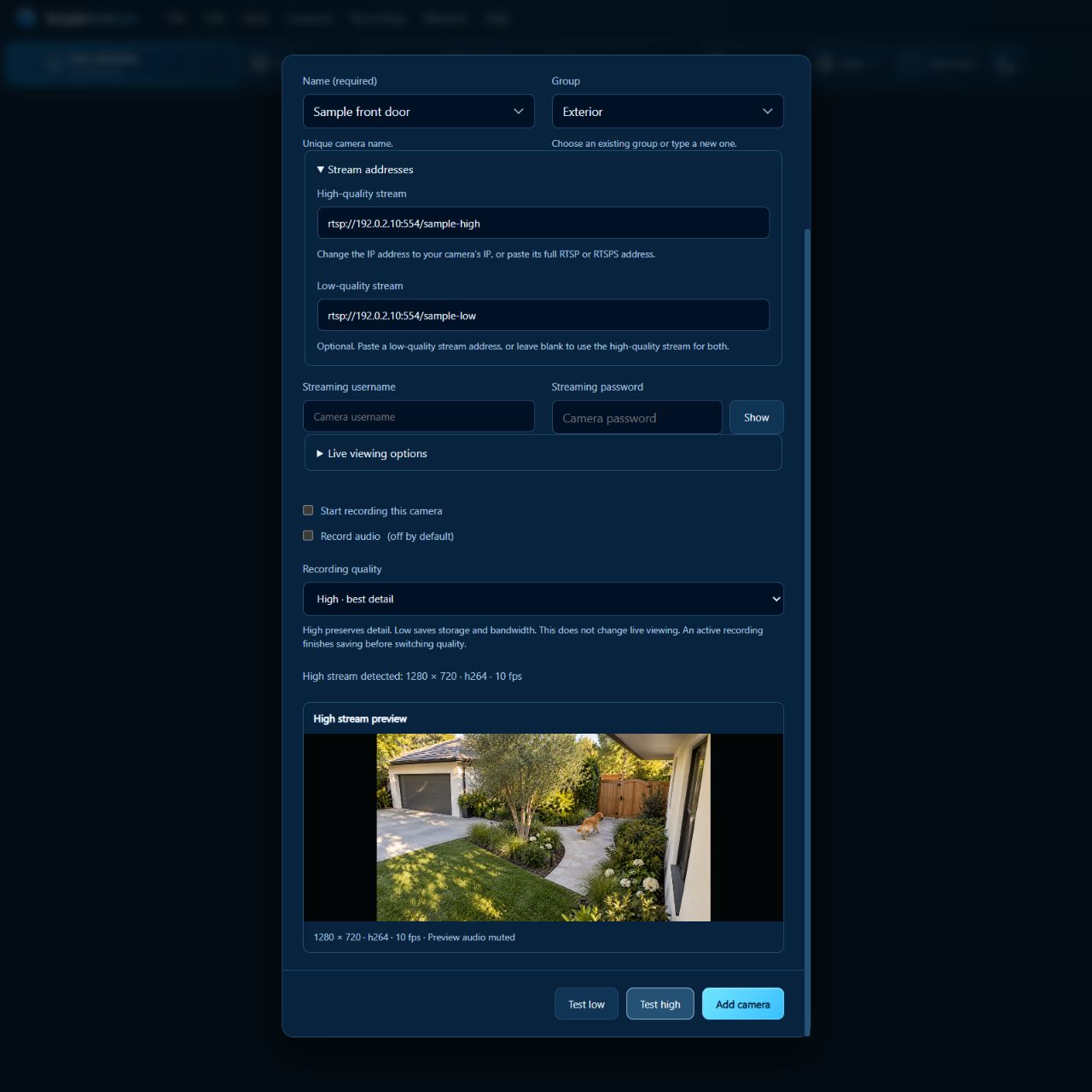
Choose Test low, then Test high. The app shows one preview at a time; check each feed before adding the camera. If a preview does not connect, recheck the address, camera login, and RTSP setting before continuing.
Low-quality example · Test low
640 × 360 sample preview. Check that this is the expected camera and that its picture keeps updating.View full low-quality screenshot
High-quality example · Test high
1280 × 720 sample preview. Check that this is the expected camera and that its picture keeps updating.View full high-quality screenshot
Two captured preview states from the 0.3.81 interface, using the same illustrative sample photo at different resolutions. This isolated sample setup did not connect to or validate a real camera. Your camera's resolutions may differ.
Add it and confirm the live view.
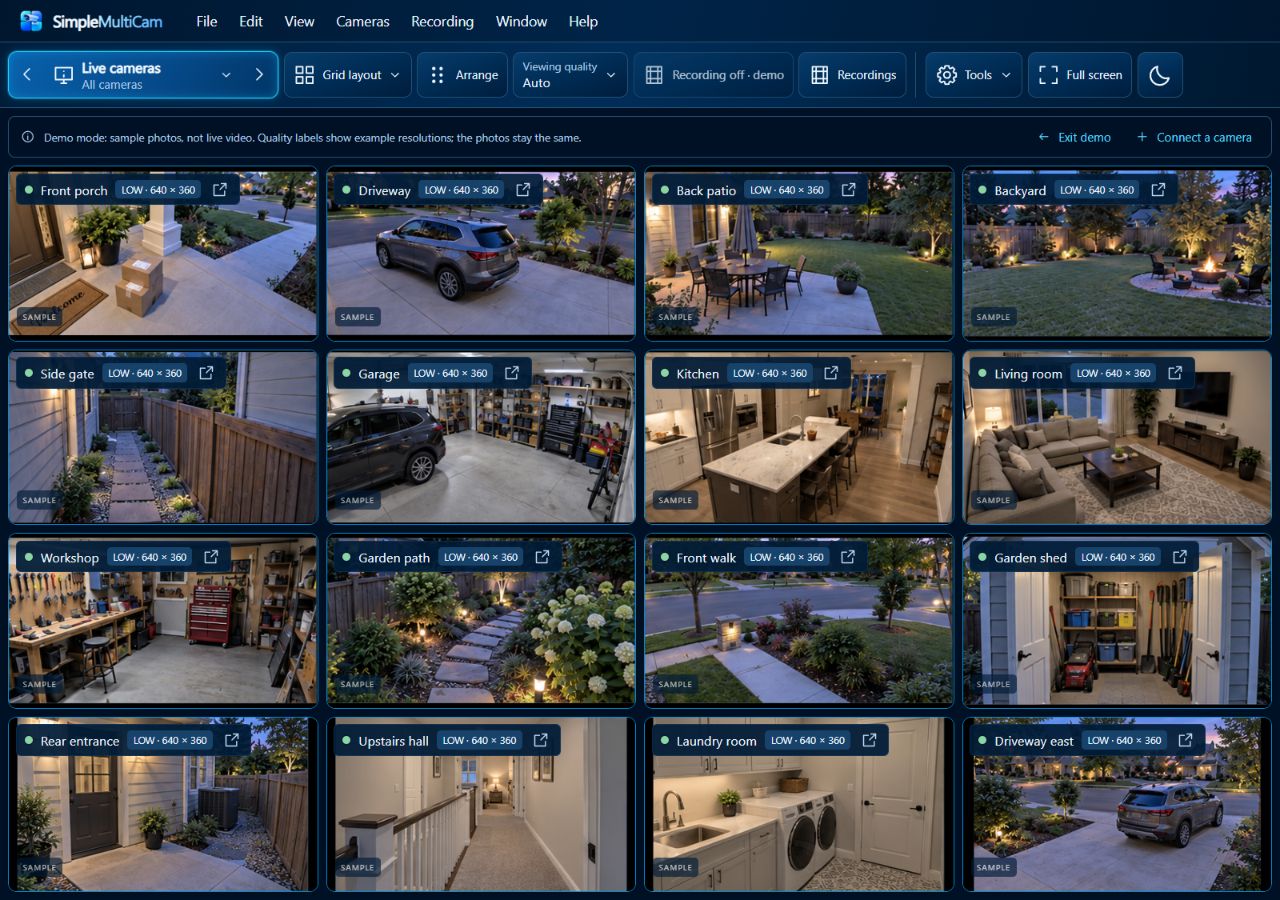
Leave Start recording this camera unchecked if you only want to watch. Choose Add camera, then Live cameras, and confirm the picture keeps updating.
This shows where camera pictures appear. These are the app’s built-in sample photos, not a successful camera connection. Your own picture should keep updating. 0.3.81 interface · isolated sample setupView full sample-wall screenshot
Keep connection details private. Enter passwords and stream addresses only in the camera setup—not in website forms, emails, or screenshots you share.
These earlier setup illustrations show SimpleMultiCam 0.3.81 in an isolated sample fixture, with focused crops and numbered highlights. Toolbar placement may differ in the current beta. Camera connections and recording were disabled. Camera-specific compatibility still needs verification.
Camera setup, previews & backupsFollow the setup screens, identify your cameras, and back up your configuration.View detailsHide details
Set up
Get the right picture. Keep useful settings.
Follow the camera’s own setup first, then add its supported stream to SimpleMultiCam.
Camera setup example · No camera connected or tested · Build 0.3.75Enlarge screenshot
Follow a visual guide.
Open Add camera, then Camera setup guide. Choose Wyze V3/V4 or another RTSP camera. Presets keep technical stream and viewing options tucked away; expand them when needed. Other camera and manual entry expose the required addresses. Confirm RTSP support for the exact model and firmware first.
Reuse a working setup.
Copy camera settings when adding a similar camera. Save a backup and Restore from backup carry configuration and saved views separately from recordings. Setup backups are password-protected and encrypted. They may contain camera credentials; keep the backup and its password safe.
Recognize each angle.
Names and still-image previews help identify cameras. Recent images are reused; a timestamp and Older preview or Unavailable label explain freshness.
See the camera list and preview controlsFind cameras by their picture and choose recording quality for each one.View detailsHide details
Double-click a preview to open its camera, or use Enter/Space from the focused preview. Cached images and shorter fresh-capture startup reduce repeated work; loading time depends on your camera and computer.
More everyday controlsExplore the controls that help you manage your everyday camera workspace.View detailsHide details
Watch in Low. Record in High. Separate quality choices can reduce viewing load while preserving recording detail when both streams exist. Receiving both streams can add traffic. Video recording can reuse the incoming compressed stream without re-encoding the picture.
Light or Dark. Use the moon button to change appearance without recoloring footage. Interface zoom changes control size. J/K/L and Space support playback; Ctrl + wheel over the timeline zooms time.
Status and startup. Connecting, Reconnecting, and Not live messages identify interruptions. Optional sign-in startup, fullscreen, and keep-awake settings support a dedicated display. Logs are available under Help → Troubleshooting.
Restart recovery is a development-only option. It needs separate setup, is excluded from evaluation mode, and still needs real reboot testing. Read its limits.
Camera recovery
Reconnect without starting over.
If a camera’s local address changes, recover its connection while preserving its name, saved views, recording settings and history.
Choose Help reconnect this camera from an unavailable camera, or Cameras → Find missing cameras. Search your local network, or enter the address shown in the manufacturer’s app. Choose Show picture and confirm Yes, reconnect only when you recognize the right camera.
A search result alone does not change a saved camera address. For RTSPS cameras with a self-signed certificate, review the certificate confirmation; a changed certificate is not silently accepted. Back up your updated setup afterward.
How do I use activity detection?Read answer
Enable detection per camera, tune sensitivity and ignored areas, and use Recent activity for events outside the current view. An optional sound can draw your attention to activity; mute or adjust its volume when needed.
Use Find activity in Recordings to revisit an event. The camera must have been recording and its footage must still exist. Shadows, weather and lighting can trigger false positives. Detection is not person recognition or an alarm service.
Backup & restore
Keep a copy of your setup.
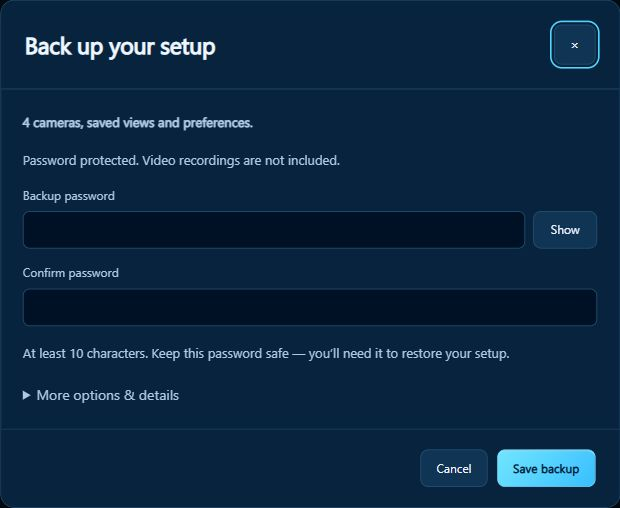
Save a password-protected, encrypted backup of your cameras, saved views and preferences. Video recordings are not included.
B34 interface · Four sample cameras · No passwords entered Enlarge screenshot
Use Save a backup, enter and confirm a password of at least 10 characters, then choose Save backup. More options & details lets you choose selected cameras instead of the complete setup. Keep the password safe; it is needed to restore.
Backups use readable, dated filenames. Saving again does not silently replace an older backup. After camera recovery, Back up updated setup helps keep the saved connection current. Choosing Later or making a partial backup does not clear the complete-setup reminder.
Program updates
Check. Download. Get back to your cameras.
Use Help → Check for beta updates, or Check for updates in About.
The program checks for updates at startup and periodically while running. Downloading an update does not stop recording. It verifies the downloaded package before offering installation.
Choose Download & install update when you are ready for a brief recording pause. The program finishes active recording segments, closes, installs and restarts; enabled recording resumes after restart. A previously downloaded package shows Install update. Cancel during download to prevent that installation.
Keep your recording drive available and allow time for the restart. Verify your camera pictures and recording status afterward. An update is not a substitute for a setup backup.
Getting started
What is SimpleMultiCam for?Read answerHide answer
It brings compatible RTSP cameras into a customizable desktop view, with optional local recording, playback, and exports. Windows is the current development platform. It supports everyday monitoring and manual review; alarm services and emergency response are separate.
Does it replace my camera’s phone app?Read answerHide answer
No. Keep the manufacturer’s app for setup, updates, alerts, device controls, and supported remote camera viewing. SimpleMultiCam has its own layouts and local recording library. Manufacturer services do not automatically synchronize with it.
Where can I download it, and which systems are supported?Read answerHide answer
No customer installer is available here. A Windows x64 development package was used for current screenshots. Exact supported Windows versions, hardware requirements, and camera capacity remain pending. See release status.
Are Apple TV, browser sharing, or automatic event search available?Read answerHide answer
No. The current offer does not include an Apple TV application, browser wall sharing, or person/object recognition. Motion detection and Find activity are available. A TV connected as a computer display is a separate fullscreen use case. No delivery dates are promised.
Troubleshooting
What needs attention?
Find your way around
How do Fit, Fill and viewing zoom work?Read answer
Fit shows the entire camera image, with borders when proportions differ. Fill crops only the displayed edges to fill the tile. Fit all / Fill all apply to the current view.
Use the camera zoom controls to inspect detail, then drag to pan. Reset to 100% to return to the full view. Zoom works with live and recorded pictures and does not change recorded, exported or snapshot files.
Does Fill crop my recordings?Read answerHide answer
No. Fit shows the entire image and may leave space around it. Fill fills a tile by cropping its displayed edges only. Recordings, snapshots, and exports keep the full source frame.
Choose per camera, or use Fit all / Fill all. These choices are saved per view and shared between the main wall and fullscreen.
Can I change the camera background?Read answerHide answer
Open Tools → Settings → Appearance → Advanced appearance → Camera background. Subtle logo is the default; Plain dark is the alternative. The background is still, with no motion or drift.
Where do I find the main controls?Read answerHide answer
Live cameras returns to your view. Its dropdown contains camera groups, saved views, New view, and Manage views. Edit view appears when a custom view is selected.
Previous and next view arrows move through your saved views with one click, including in fullscreen. If you have no saved views, they cycle through All cameras and your camera groups. The sequence wraps at either end; arrows are disabled when there is only one choice. Manual switching pauses automatic view rotation and leaves recording running. If you have unsaved arrangement changes, the program asks what to do with them first.
The grid fits the window automatically. Use Arrange cameras to set the order and Viewing quality to choose the stream. In a narrow window, these controls are grouped under View options.
Recording starts and stops capture; Recordings opens saved footage for review, snapshots, exports, and multicamera clips.
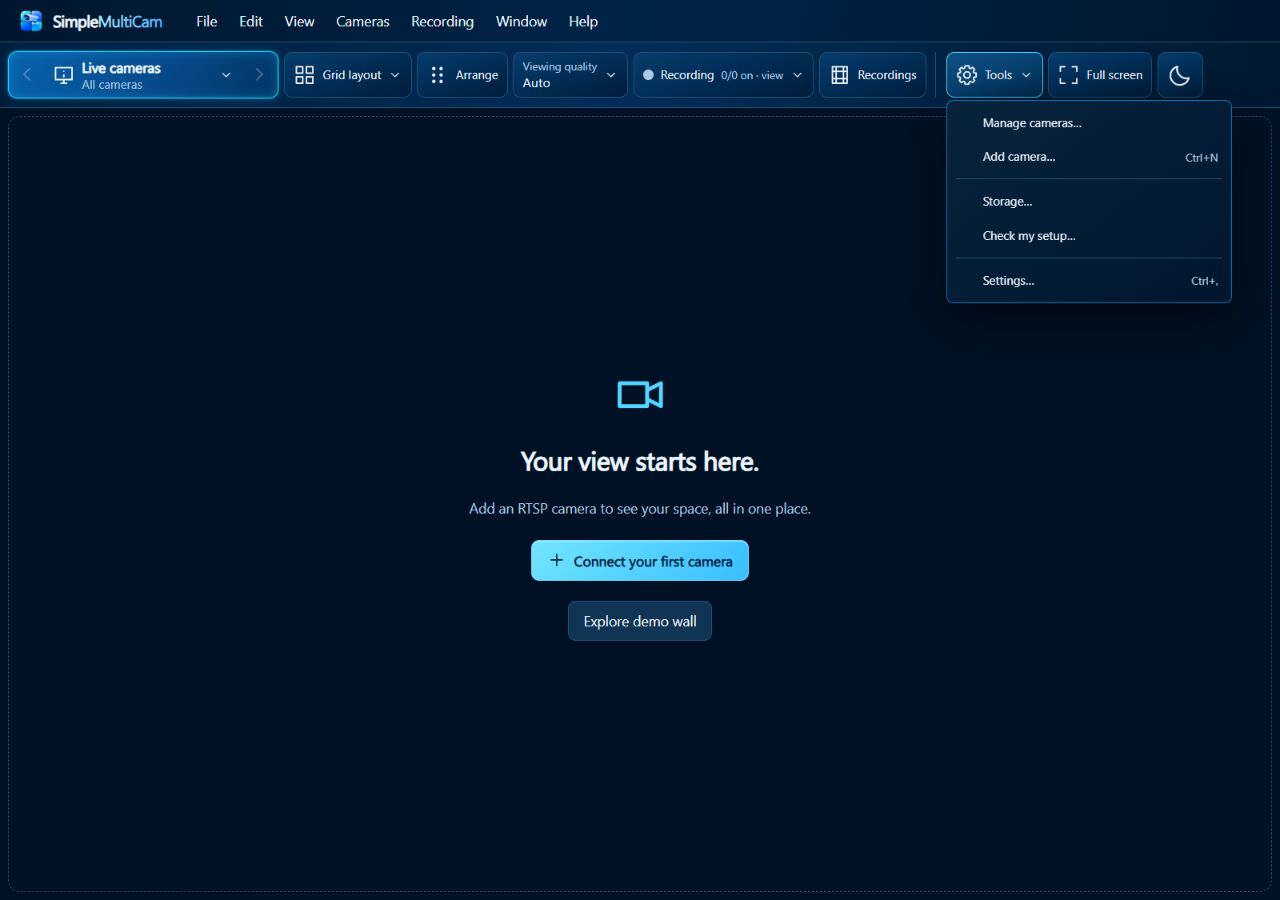
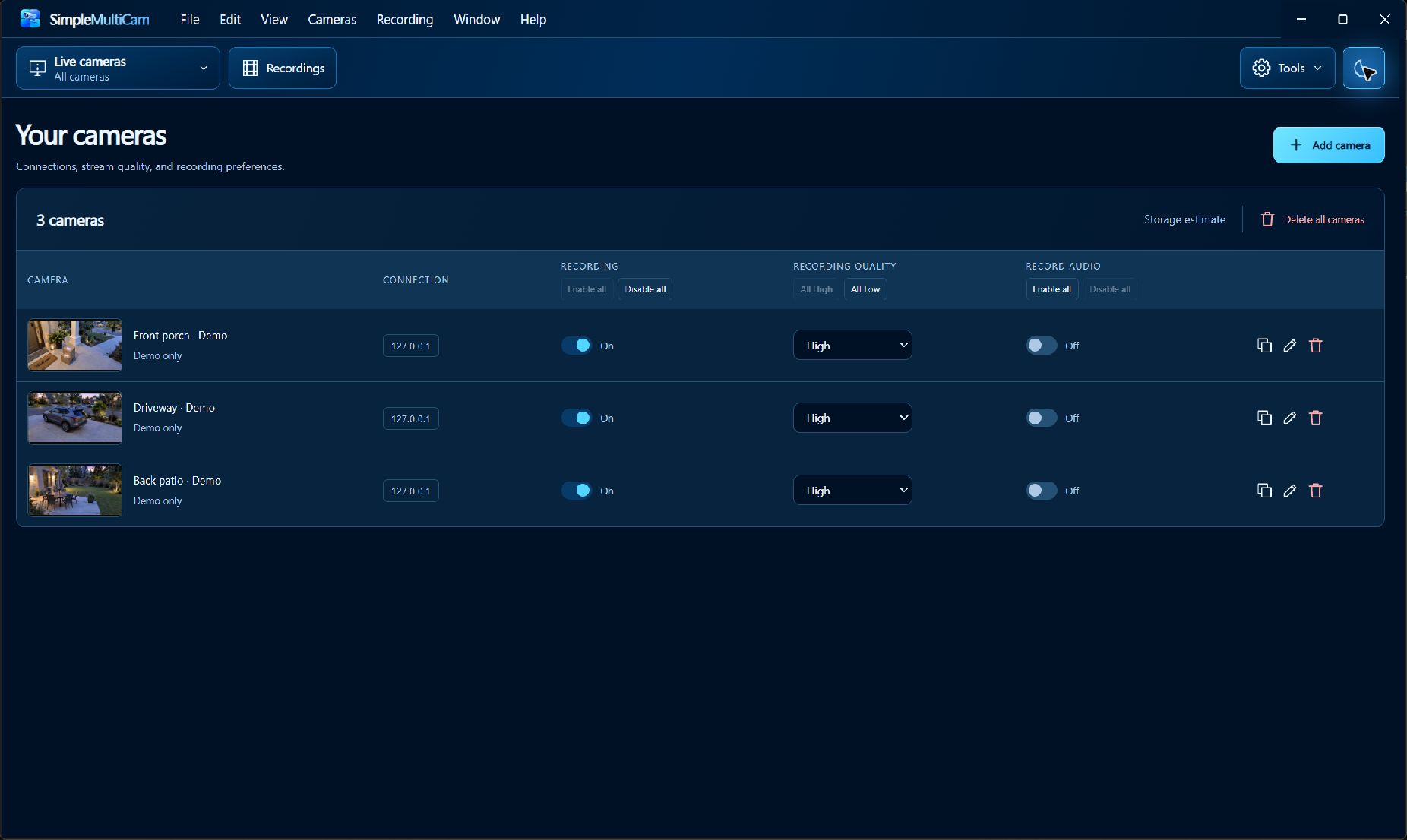
Tools contains Manage cameras, Add camera, Storage, Check my setup, and Settings. Use the moon button for Light or Dark appearance. Application menus remain across the top.
Use Ctrl+1 for Live cameras, Ctrl+2 for Recordings, and Ctrl+/ for keyboard shortcuts. Interface zoom changes the controls’ size without changing your recordings or export resolution.
What should I see while SimpleMultiCam starts?Read answerHide answer
A startup window shows rotating artwork, the installed version, and actual loading steps. Camera connections load separately, so you can start using the workspace while they connect.
Opening the shortcut again brings the existing startup or program window forward. Opening an already-running program returns to its existing window. The artwork illustrates everyday use; it is not footage from your cameras.
Cameras and connections
What does RTSP mean?Read answerHide answer
RTSP stands for Real-Time Streaming Protocol. It lets compatible software request and control a camera stream using its address and login. Check the manufacturer’s instructions for the exact model.
Will my camera work?Read answerHide answer
RTSP/RTSPS support is a starting point, not a guarantee. Firmware, stream path, codec, authentication, and any bridge requirements matter. Earlier Wyze v3/v4 development setups still need exact documentation and final-release retesting. Check the compatibility record.
Can you research an unlisted camera?Read answerHide answer
Email us the make, exact model, and your question. The camera inquiry form can prepare a message for you to send from your email app. Future manufacturer research will be labeled separately from actual tests, and only reviewed camera findings—not contact details—will enter the public list.
Does a feed freeze while the phone app is open?Read answerHide answer
Try closing the manufacturer’s live view and phone app, then retry the affected feed in SimpleMultiCam. Keep the computer and camera on. Close other viewers you control for this comparison.
If it improves, reopen the phone app and note whether the interruption returns. Record the model, firmware, and quality setting. Simultaneous-viewer limits vary; closing the app is an isolation step, not a guaranteed fix.
Phone-app priority over RTSP is an owner observation, not yet a confirmed priority rule. If the problem persists, check camera power, connection, and stream settings, then run the relevant setup check.
Can someone outside my network view my streams?Read answerHide answer
SimpleMultiCam does not create a public viewing portal. With local camera addresses and local routes, camera-to-computer video stays on your network; the reviewed desktop video services listen on the computer itself.
This is not a guarantee against every access path. Manufacturer cloud services, port forwarding, VPNs, remote desktop, and access to your computer or camera account remain separate. The program also accepts reachable non-local RTSP addresses; it does not enforce LAN-only sources.
Keep camera ports closed to the internet, use strong passwords and updates, and review separate remote services. RTSP alone does not guarantee encryption. See the data and privacy explanation. Final release traffic and access checks remain pending.
Will it work without internet, and how many cameras can I use?Read answerHide answer
Local streams need a working local network. Full offline operation, including licensing, is not yet verified. There is no verified universal camera limit: resolution, bitrate, viewing, recording, and storage all affect workload. Demo photo counts and short diagnostic checks are not capacity ratings.
Why is a camera-list preview old or slow?Read answerHide answer
Camera-list previews are still images. Recent frames are reused; fresh captures depend on the stream and connection. Hover for the capture time. Older preview or Unavailable means freshness could not be established. Open the camera to inspect live video.
Recording and storage
Can I view without recording, or record only certain cameras?Read answerHide answer
Yes. Recording is optional. Choose an individual camera, the current view, or all cameras, then set recording quality and audio separately. Audio recording starts off by default.
A completed demo test received and recorded three local RTSP streams. Sustained real-camera recording, audio, recovery, and customer-release reliability still need verification.
Does closing the window stop recording?Read answerHide answer
Keep your computer on and awake, with SimpleMultiCam running. Choose Keep running in background to continue enabled recordings after closing the window, and reopen it from the tray or shortcut. Sleep, shutdown, or Stop recording and quit stops recording. The cameras and recording drive must remain available.
What do the red and green indicators mean?Read answer
A red recording dot means an active recorder is reported. Green means no active recording is reported, including starting, reconnecting or interrupted states; it is not a connection-health signal. Hover for status text and check warnings.
A red camera border is different: it highlights detected activity, then fades after motion stops. Activity detection and recording are separate settings.
How do Low, High and Auto affect my cameras?Read answer
Choose Viewing quality in the toolbar, or click a camera’s LOW / HIGH badge. Auto normally uses High for up to four visible cameras and Low for larger walls; individual camera choices can override it. A lower-quality stream must exist on the camera.
Viewing quality does not change recording quality. Zoom changes only your view; it does not increase source detail or crop recordings. Compare real demo frames.
Can recordings go to an external drive?Read answerHide answer
Yes, the development software accepts a dedicated folder on a suitable attached HDD, SSD, or USB drive. Open Tools → Storage → Recording location → Change folder…. Select a new empty folder, not the entire drive.
Keep the drive connected, writable, and fast enough for sustained recording. A small or slow thumb drive may be unsuitable. A recording drive is not a backup; snapshots, exports, and settings keep separate locations.
You can leave old footage in place or choose a move. The development move copies and verifies before removing originals, and recording pauses during the change. Finish recording, playback, moves, and exports before ejecting. Device, filesystem, move, and disconnect/reconnect tests remain pending.
How do I change recording storage settings?Read answerHide answer
Open Tools → Storage. Retention, space limit, recording folder, the estimate, and Free up space are in the main view; expand advanced settings only when needed. Estimates require measured camera information and are not a guarantee of capacity.
Unsaved edits remain when you navigate away and back within the same session. Save to apply them. If a save fails, the previous active settings stay in use and the edits remain available to retry. See the Storage screen.
How do retention and Protect work?Read answerHide answer
Rolling retention removes eligible older recordings. Protect keeps selected segments out of automatic cleanup until you unprotect them. A bookmark alone does not protect footage. Protection does not encrypt files, control access, or make a backup; export a separate copy when needed.
Free-space reserves and warnings help manage storage, and unavailable storage can pause recording. These safeguards do not guarantee against loss. Final cleanup and recovery behavior still need release testing.
Can recording resume after a Windows restart?Read answerHide answer
Optional development recovery is intended to resume enabled recordings before sign-in after separate setup. It is excluded from evaluation mode. Real service installation and recording through a physical reboot remain to verify; uninterrupted recording is not promised.
Playback and exports
How do I find a recorded moment?Read answer
Open Recordings from your live view. Its camera selection and order carry over. Choose a date and time, use the timeline, or step back and forward 10 seconds. Use Find activity to filter detected events by camera and date.
Clicking an event starts about two seconds before detection when footage exists. A missing recording cannot be recovered from the event marker. For filmstrips, open More options → Camera tracks and thumbnails; selecting a camera brings its track first. See the review workspace.
How do I make a Multicam Clip?Read answer
Choose Save video in Recordings. Follow Choose the part → Choose cameras → Preview & save. Choose Switch between cameras and use Use this camera when you want to add a cut. Merely previewing a camera does not edit the clip.
Choose Show cameras together for a combined camera wall, or select one camera for a single-angle video. Preview the result, choose video size and recorded sound, then save the MP4. Source files stay unchanged. See the editor.
Can I continue an unfinished clip?Read answer
Reopen Save video and choose Continue clip. One local recovery draft stores the editing choices. Starting a different clip asks before replacing it. A successful save clears its matching unchanged draft; canceled or failed saves retain it.
A draft is not a copy or protection of the footage. If recordings are deleted, moved, or cleaned up, the draft cannot recreate them. Protect important source segments or save a separate video.
What happens when footage or sound is missing?Read answer
Playback displays No footage recorded for a gap and can continue to the next available footage. In Preview & save, choose a missing-footage screen or review gaps before saving. Missing audio stays silent.
Recording times align the cameras; this is not a guarantee of frame-perfect synchronization. Exports cannot add original detail, motion, or sound. The marked clip may be up to one hour.
Can I save a whole camera wall?Read answer
Yes. Choose Save video → Show cameras together. Choose the cameras and part to keep, then preview and save. Video sizes include 720p, 1080p and 4K; the resolution covers the entire grid. Combined-wall output uses 15 fps; switching-angle clips use 30 fps. A higher setting does not create detail or movement missing from the original.
Select sound separately. You can use no sound, recorded sound following the selected camera, or one recorded camera throughout where the chosen export mode supports it. Export examples.
Can I save snapshots, use fullscreen, or move my setup?Read answerHide answer
Snapshot controls offer PNG, JPEG, and clipboard output; recorded-wall snapshots keep angles together. F11 enters fullscreen and Esc returns; a camera can open in its own window.
Save a backup and Restore from backup carry configuration and saved views, separately from recordings. Setup backups are password-protected and encrypted. They may contain camera credentials; keep the backup and password safe, and verify the restored setup.
Does appearance change my footage?Read answerHide answer
The moon button changes the interface between Light and Dark without recoloring your footage. Interface zoom resizes controls; Ctrl + wheel over the timeline changes its time range.
Where do the example pictures come from?Read answerHide answer
All examples use isolated demo profiles. Older views show sample photos or empty forms. The recording and multicamera examples use AI-generated dog photographs held in a prepared archive. The current recording and editor examples show the unmodified B34 interface with isolated synthetic data. Their activity event is illustrative, not measured. These isolated sample profiles contain no personal camera feeds. The matching website gallery shows three simulated moments, not continuous video or synchronized real camera footage. Diagnostic results use three locally served sample-video streams actually received and recorded during a two-minute check. The Low/High frames come from an original illustrated scene. No personal cameras, credentials, recordings, or saved results were used.
Check my setup
Find a useful next step.
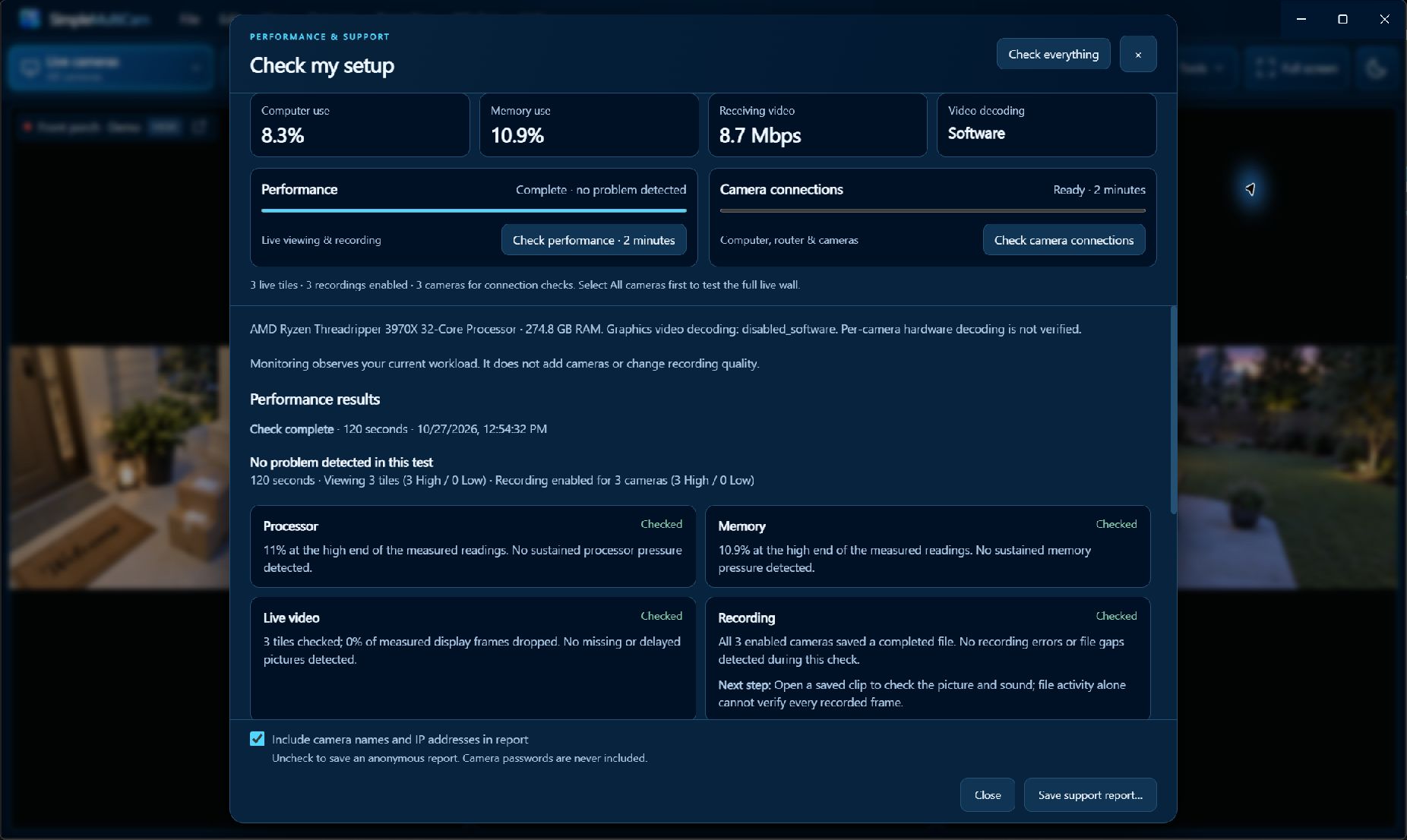
Open Tools → Check my setup (also available in Help). Run performance and camera connections together with Check everything, or choose either two-minute check.
Keep your intended wall open and recordings enabled. Performance checks cover displayed tiles, all enabled recorders, computer load, and storage. Connection checks cover configured cameras and use small local network probes; they do not open extra video feeds or run an internet speed test. Scope counts show what is included.
Recording continues during the checks. A finding describes the observed workload; it cannot predict maximum capacity or verify every saved frame.
How should I interpret connection findings?Read answerHide answer
A missed ping does not prove a camera is offline. Link speed is not spare capacity, and a responding local relay does not establish the health of the camera behind it. Computer Wi-Fi information describes the computer, not the camera. Camera Wi-Fi strength is unavailable in the reviewed build.
Not measured or unavailable means no measurement was obtained—not a pass or a fault. Expand the finding to see the evidence and next step.
What does a saved support report contain?Read answerHide answer
The report contains program/computer specifications, workload observations, recording-drive status, stream specifications, connection findings, and event categories. Saving creates a local JSON file; it does not upload it or open a support case.
In build 0.3.75, Include camera names and IP addresses in report is checked by default. Uncheck it to omit those identifiers and use generic camera labels. Other system information remains; this is not a promise of complete anonymity.
The reviewed implementation excludes footage, credentials, full stream URLs, paths, and raw logs in either option. Review the actual file before sharing. Final report export and privacy checks remain pending.
Where are the logs?Read answerHide answer
Use Help → Troubleshooting → Open diagnostic logs, or the Settings shortcut. These local startup/error/activity logs are separate from the restricted support report. Some fields are masked, but review for private details before sharing only what is needed.
Completed demo
See what results look like.
A real 120-second performance check received and recorded three local sample-video streams. All five findings reported Checked.
Checked means no issue was detected in that check. Needs attention points to a problem or next step. Not tested means the activity was excluded; Could not verify means evidence was insufficient.
The camera-connection test was not run. This demonstration does not test camera hardware, Wi-Fi, motion quality, or continuous reliability. Live system readings may differ from the completed findings. Open a saved clip to inspect picture and sound.
Viewing while away
Choose the right route.
SimpleMultiCam is designed for cameras on your local network. It does not include an internet viewing service.
For a quick camera check.
Use the manufacturer’s phone app where remote viewing is supported. Its camera/cloud recordings are separate from SimpleMultiCam’s local archive.
For your desktop workspace.
Use separate remote desktop software to reach your home computer, customized layout, and local recordings. TeamViewer is one option; it is not a tested or bundled integration.
Keep the home computer available.
Leave it on, awake, online, connected to the cameras, and running SimpleMultiCam. Keep the recording drive attached for playback. Test the outside connection before relying on it.
Remote desktop sends the displayed content over the internet and can expose other computer files and controls. Use trusted devices, strong credentials, and multi-factor authentication where available. Do not expose camera ports or Windows RDP directly to the internet. Follow workplace rules and provider guidance. Remote-access privacy.
Provider guides were reviewed October 21, 2026. SimpleMultiCam video/audio behavior through these tools still needs testing.
Beta access and purchases
How do I join the beta?Read answer
Register your interest through the beta signup form. Signup is a request, not an activation or guaranteed invitation. If invited, follow the access and license instructions in your invitation. No payment is requested by this signup.
Does the beta need internet access?Read answer
Beta activation and license checks contact the licensing service. Update checks and downloads also use the internet. Those requests are separate from the local camera-video path; they do not create a remote camera-viewing portal. Online-service details.
How will payment details be handled?Read answer
No checkout is connected. Provider selection, safeguards, pricing, refunds and commercial license terms remain to confirm before purchases open.
Will SimpleMultiCam store card details?Read answer
The proposed checkout keeps full card numbers and security codes with a hosted payment provider. That boundary is not yet verified. Payment privacy draft.
Support and feedback
How will I get help?Read answerHide answer
Start with the setup guide and relevant answer here, then run the appropriate check. Keep the program version, reproduction steps, and error message ready. Review any report before sharing.
Email Support@SimpleMultiCam.com for help. Include your program version, what happened, and any error message. Response times and case tracking are still to be confirmed. Contact support.
Can I share a review or tutorial?Read answerHide answer
Email support if you would like to share a review or tutorial. See the contribution plan. Real reviews and original creator links will be used with permission and any relevant relationship disclosure. No contributions are currently published.
How can I suggest a feature and follow progress?Read answerHide answer
Use the feature-idea form to prepare an email, then review and send it in your email app. Individual request tracking is not available. Suggestions inform priorities without guaranteeing implementation, timing, or update terms.
Contact support
Talk to us.
Questions about your setup or ideas for the software? Email our support team.
Ask about your camera or suggest a feature. Both prepare a draft for you to review and send from your email app. Do not include credentials, license keys, payment details, or personal footage.