1. Choose the part.
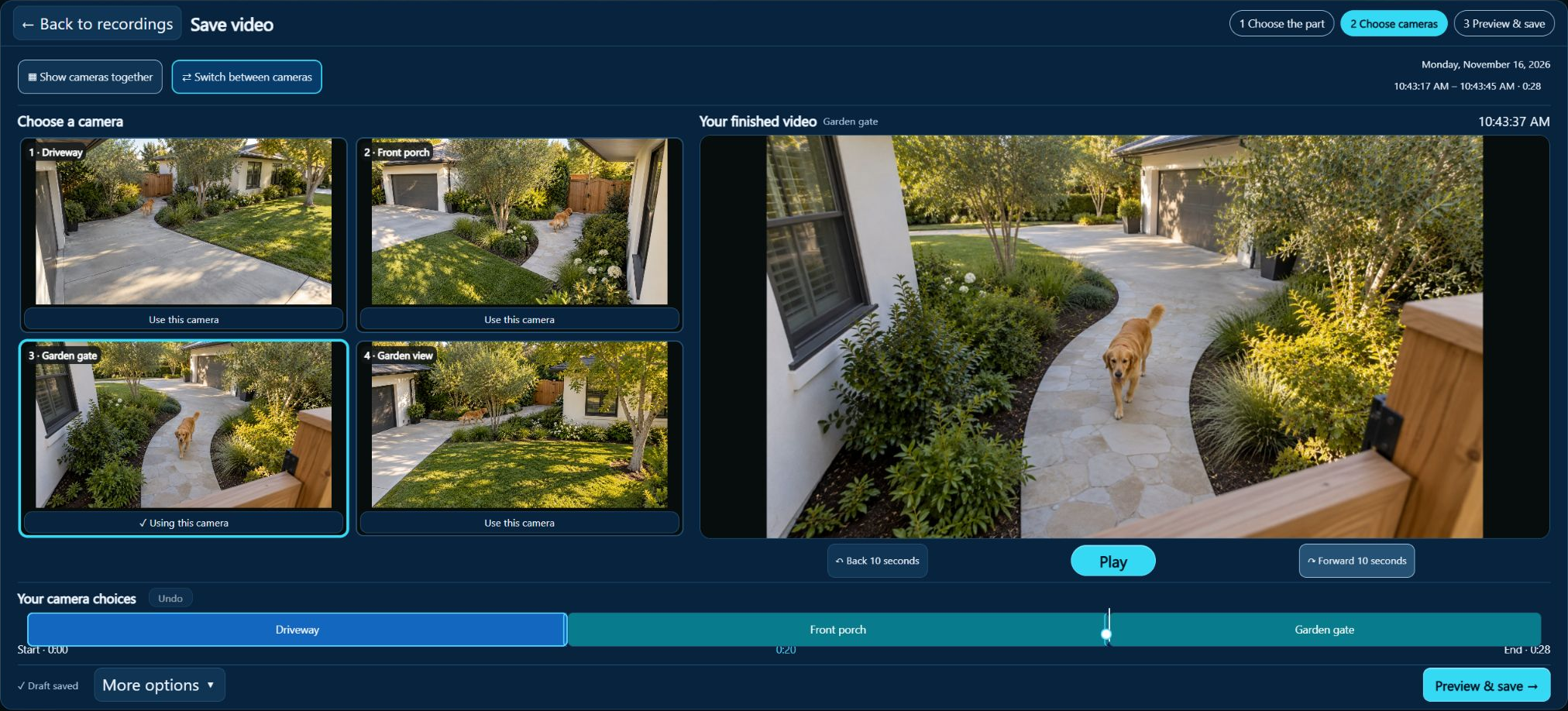
Pick a recording day and the cameras you need. Set the beginning and end of your clip as you review.
 SimpleMultiCamby Stagewoven Technologies
SimpleMultiCam features
A camera workspace for your Windows PC, from the live picture to a finished Multicam Clip.
Try the interactive sample tour →Multicam Clips
See all four angles beside your finished video. Choose the shot you want, switch cameras as the story unfolds, and save one MP4.
Pick a recording day and the cameras you need. Set the beginning and end of your clip as you review.
Keep the cameras together in a grid, or choose Switch between cameras. Use Use this camera to add an angle to your edit.
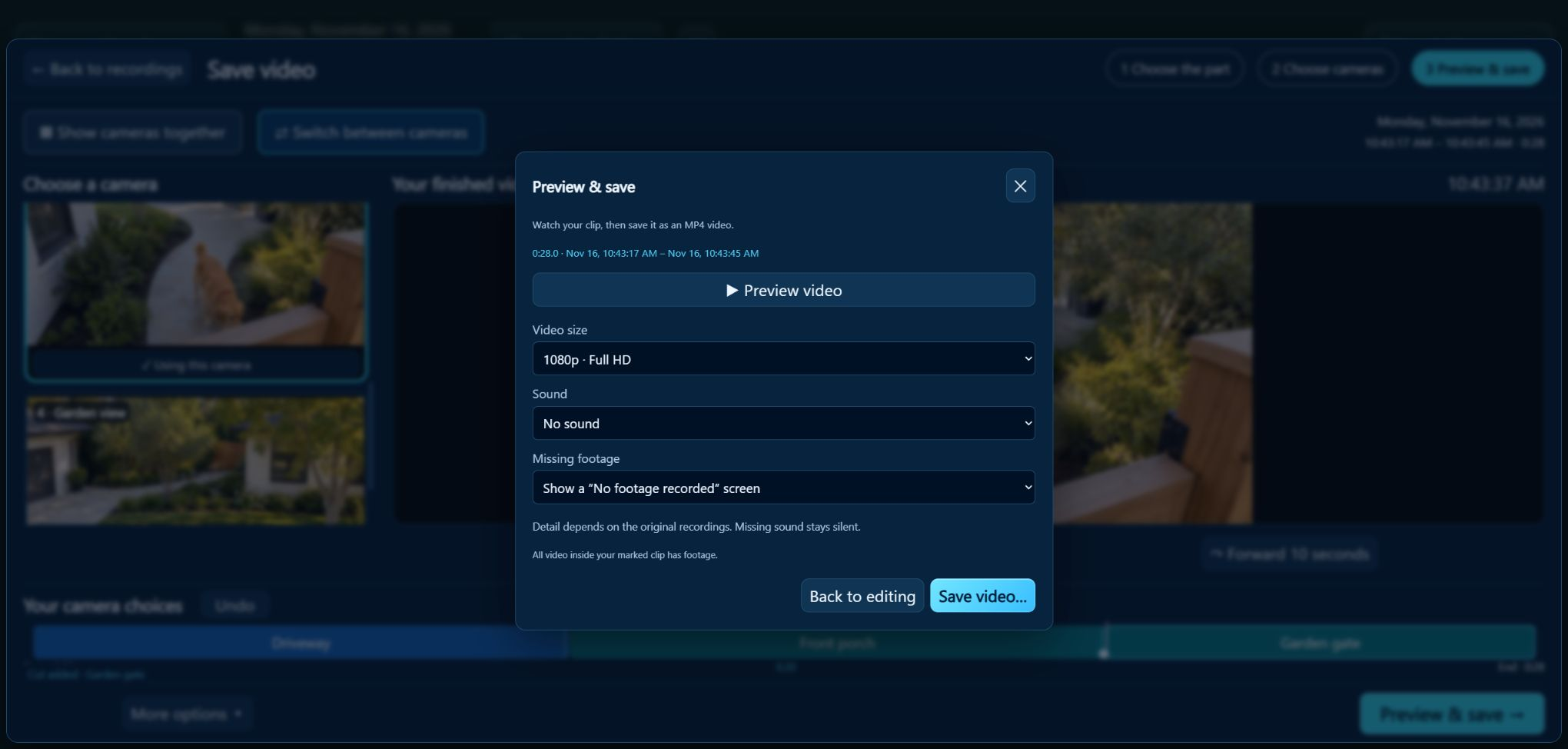
Review your finished video, choose its size and recorded sound, then save a separate MP4. Your source recordings stay unchanged.
Move camera-cut boundaries, undo an edit, or change the camera used in a cut. Previewing a camera does not change your edit until you choose Use this camera. More options keeps less-used editing tools close by.
One recovery draft is saved on your computer. Reopen Save video and choose Continue clip. A draft stores editing instructions, not another copy of the footage, and does not protect source recordings from cleanup. About clip recovery.
Live viewing
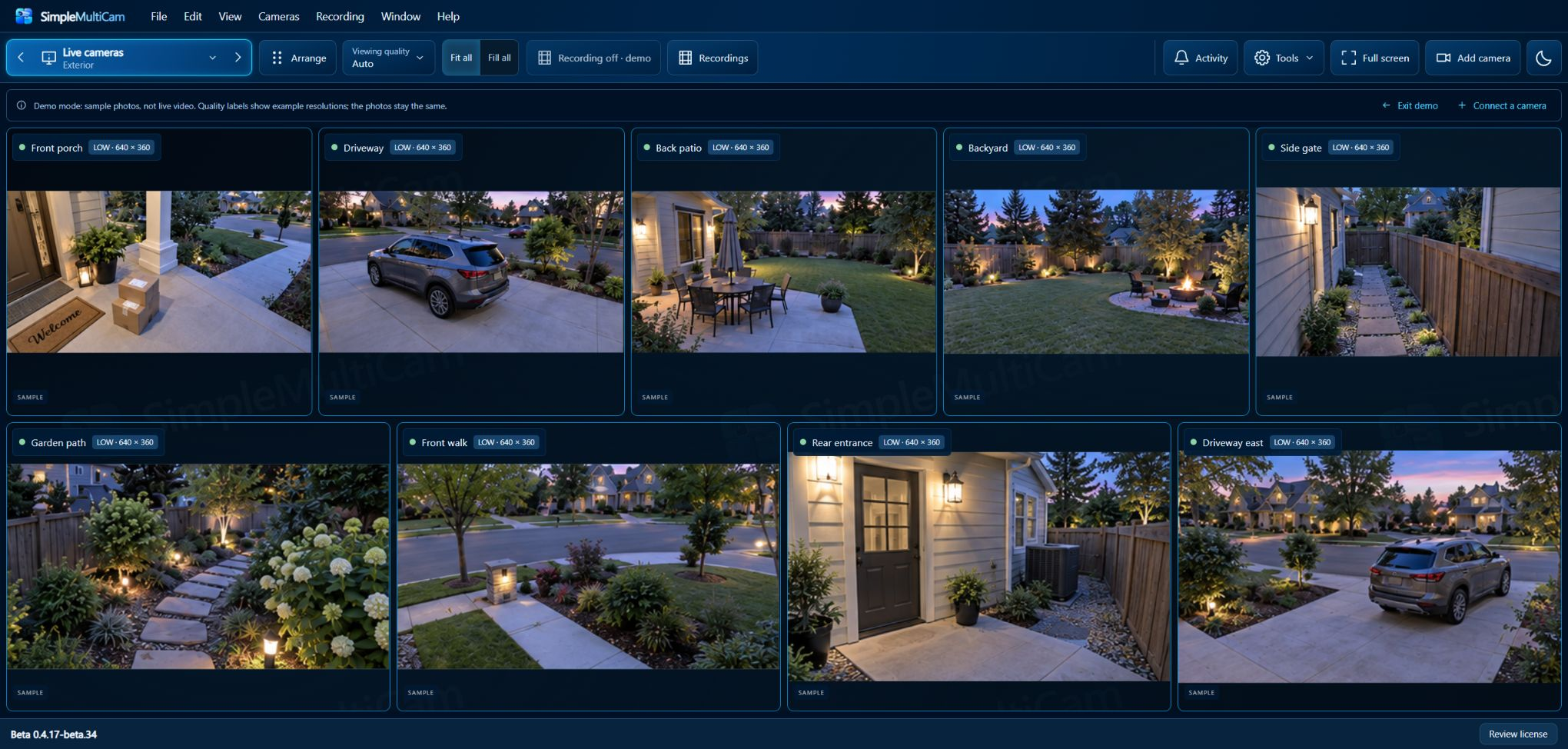
Bring compatible RTSP and RTSPS cameras from different brands into one workspace. Save the views you use and switch between them with one click.
Choose Arrange to put cameras in your preferred order. The grid adjusts to the available window; there is no column count to manage.
Previous and next arrows move through saved views in the main workspace and fullscreen. Switching views does not stop enabled recordings. Press F11 for fullscreen and Esc to return.
Zoom in on live pictures or recorded footage, then drag to look around. Use the zoom controls or reset to 100%. Viewing zoom does not crop the files you record or export.
Fit shows the whole camera image. Fill fills the tile by cropping its displayed edges. Zoom lets you inspect a smaller part of either view. Fit all / Fill all apply to the current wall; each camera also has its own choice. Recordings, snapshots, and exports keep the full source image.
Camera controls appear on hover or keyboard focus. Camera names and status remain easy to see; the LOW / HIGH badge is also a direct way to change that camera’s viewing stream.
Keep the manufacturer’s app for camera setup, firmware updates, model-specific services, and supported remote checks. SimpleMultiCam adds a desktop workspace and its own local recordings; it does not synchronize with the manufacturer’s recording library.
Local recording
Record selected cameras to your computer or a suitable attached drive. Choose recording quality separately from the pictures you watch.
Start or stop one camera, the current view, or all cameras. Audio recording is a separate choice and starts off by default.
Choose a dedicated recording folder, how long to keep footage, and a space limit. Keep an external drive connected and writable.
Recording continues while you do other things if SimpleMultiCam stays running. Choose Keep running in background when closing the window. Sleep or quitting stops recording.
A red recording dot means an active recorder is reported. A green dot means no active recording is reported; it is not a connection-health guarantee. Hover for status text and check warnings.
A red border around a camera highlights detected activity. It fades after activity stops. This is separate from whether the camera is recording.
Choose Low, High, or Auto under Viewing quality, or click the camera’s quality badge. Auto normally chooses High for up to four visible cameras and Low for larger walls. Low requires a separate lower-quality stream; changing a label cannot create one. Viewing choices do not change recording quality.
Compare captured frames from two RTSP demo streams. Look at the small lettering, fence edges, and fine lines.
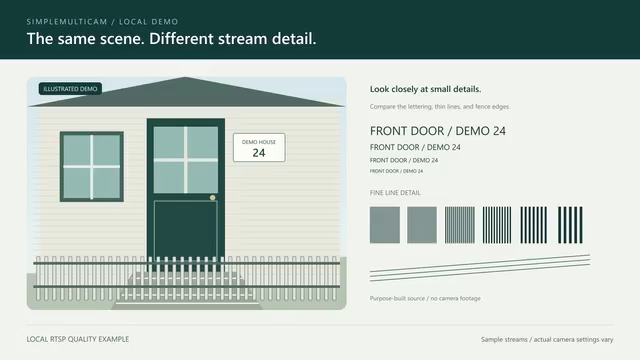
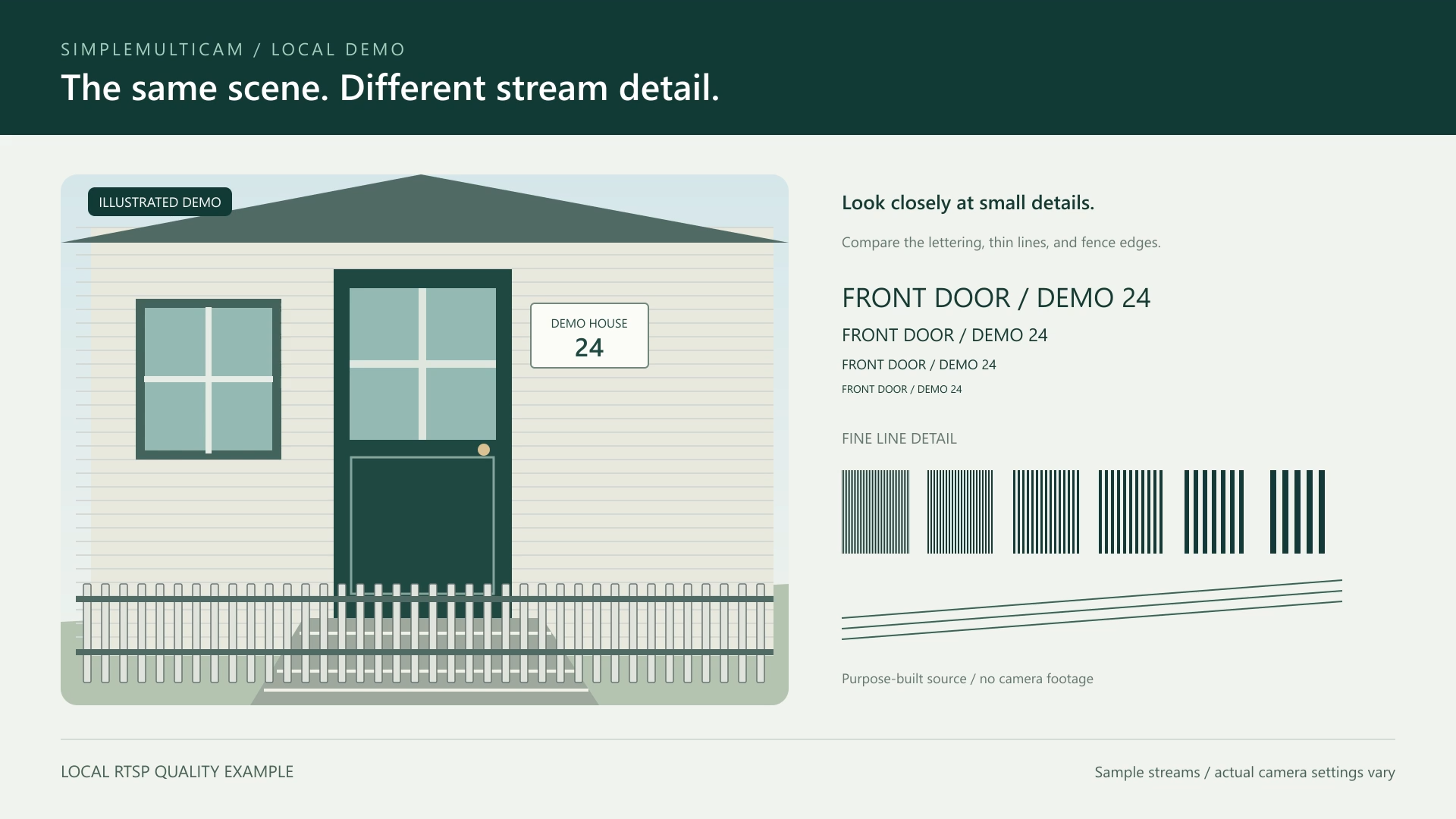
Illustrated test scene · Local demo feeds only · Your camera’s Low and High settings may differ.
The same illustrated still scene was encoded into two local H.264 RTSP streams at 15 fps: 640 × 360 with stronger compression and 1920 × 1080 with lighter compression. These are unedited PNG frames saved by SimpleMultiCam 0.3.55, displayed at the same size. They illustrate resolution and compression, not motion, camera performance, or fixed Low/High camera settings.
Open Tools → Storage for retention, capacity and recording-folder settings. Protect important segments from automatic cleanup when needed. Protection is not encryption or a backup; save a separate export for safekeeping.
Review & activity
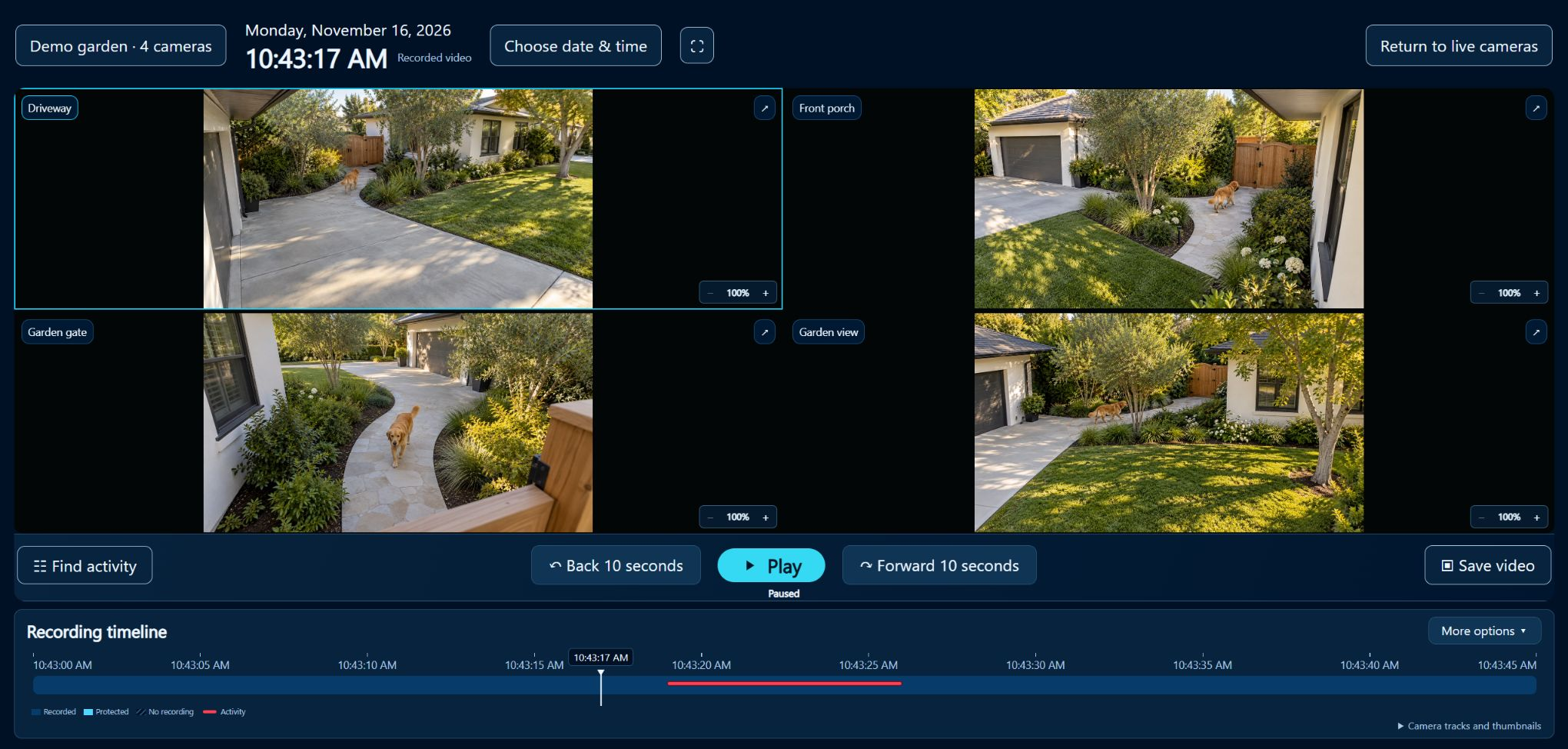
Open Recordings from the view you are watching. It carries your camera selection and order into a shared recording timeline.
Choose a date and time, scrub the timeline, or move back and forward 10 seconds. Open More options → Camera tracks and thumbnails when you want the detailed filmstrips.
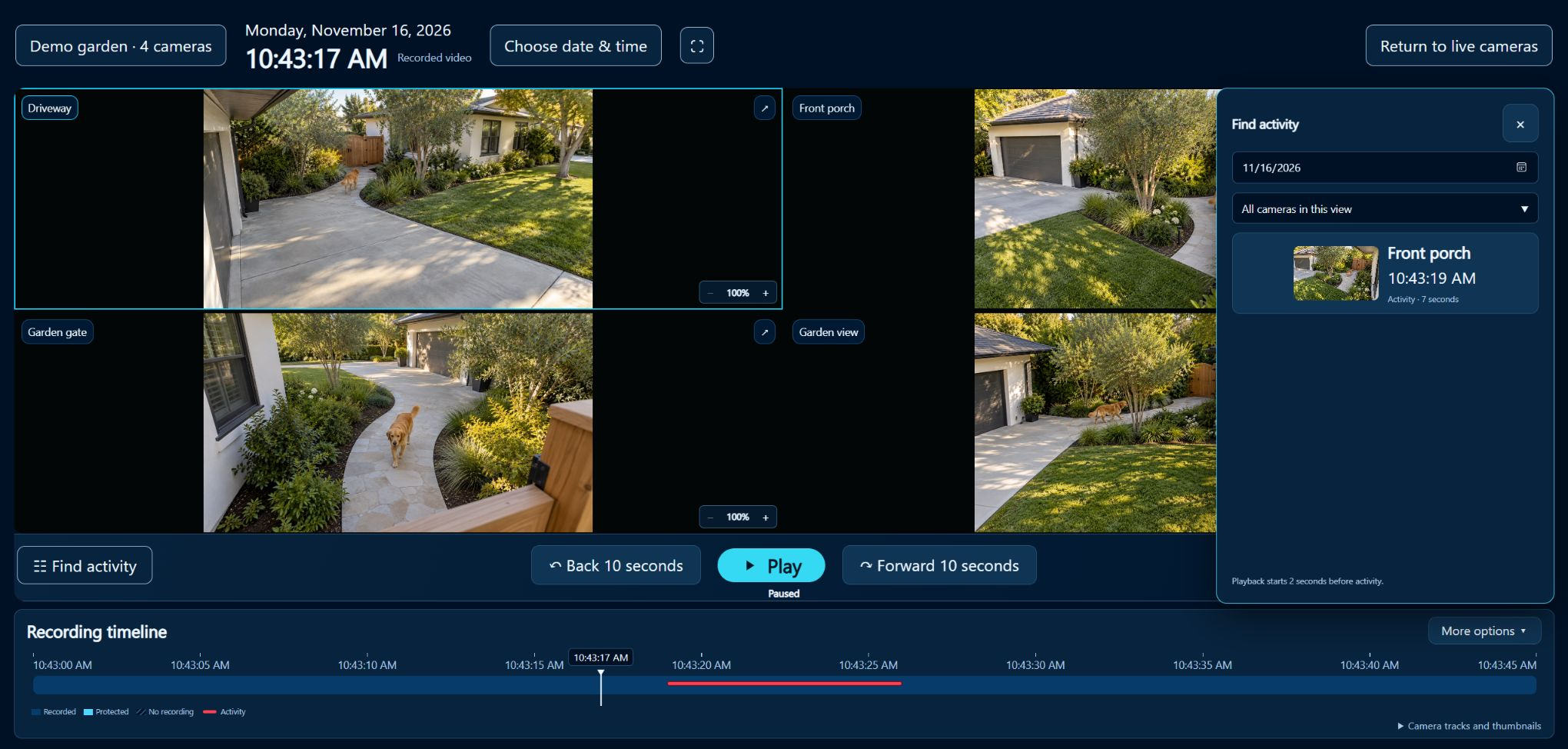
Use Find activity to browse detected events by date and camera. Choosing an event starts playback about two seconds before detection when recorded footage is available.
A gap shows No footage recorded. The clock can continue to the next available clip. Nothing invents video or sound that was never recorded.
Enable activity detection for individual cameras and tune sensitivity and ignored areas. Activity highlighting, Recent activity, and an optional sound help you notice movement, including in cameras outside your current view. Detection runs on your computer.
Lighting changes, weather, shadows, and other motion can trigger events. This is motion detection, not person or object recognition, and it does not provide an alarm-monitoring service. Recording must be enabled and footage retained to review an event later.
Simulated camera views
Choose a moment to explore the same story from each angle.
Moment 2 of 3 · Along the path
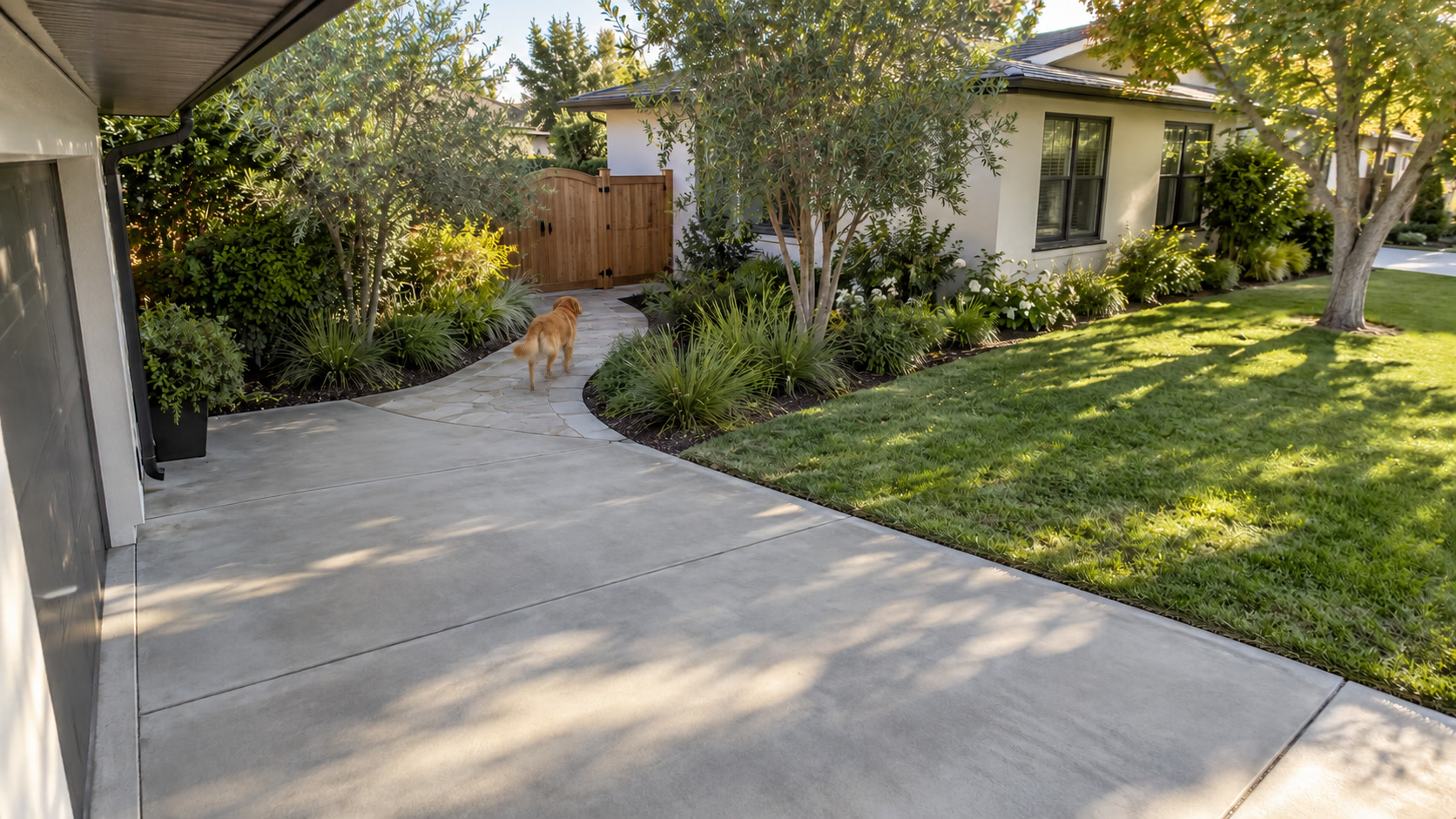

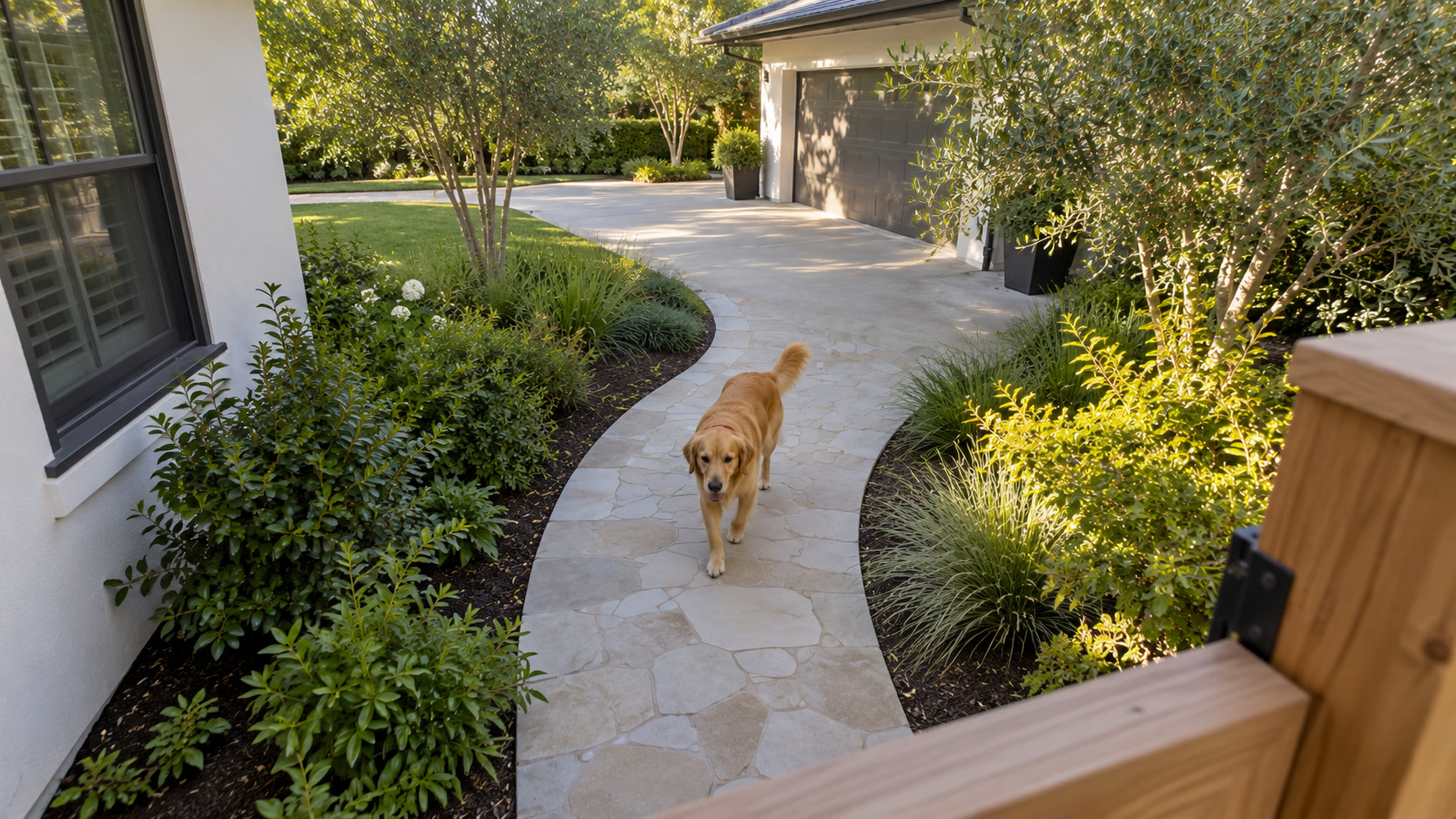
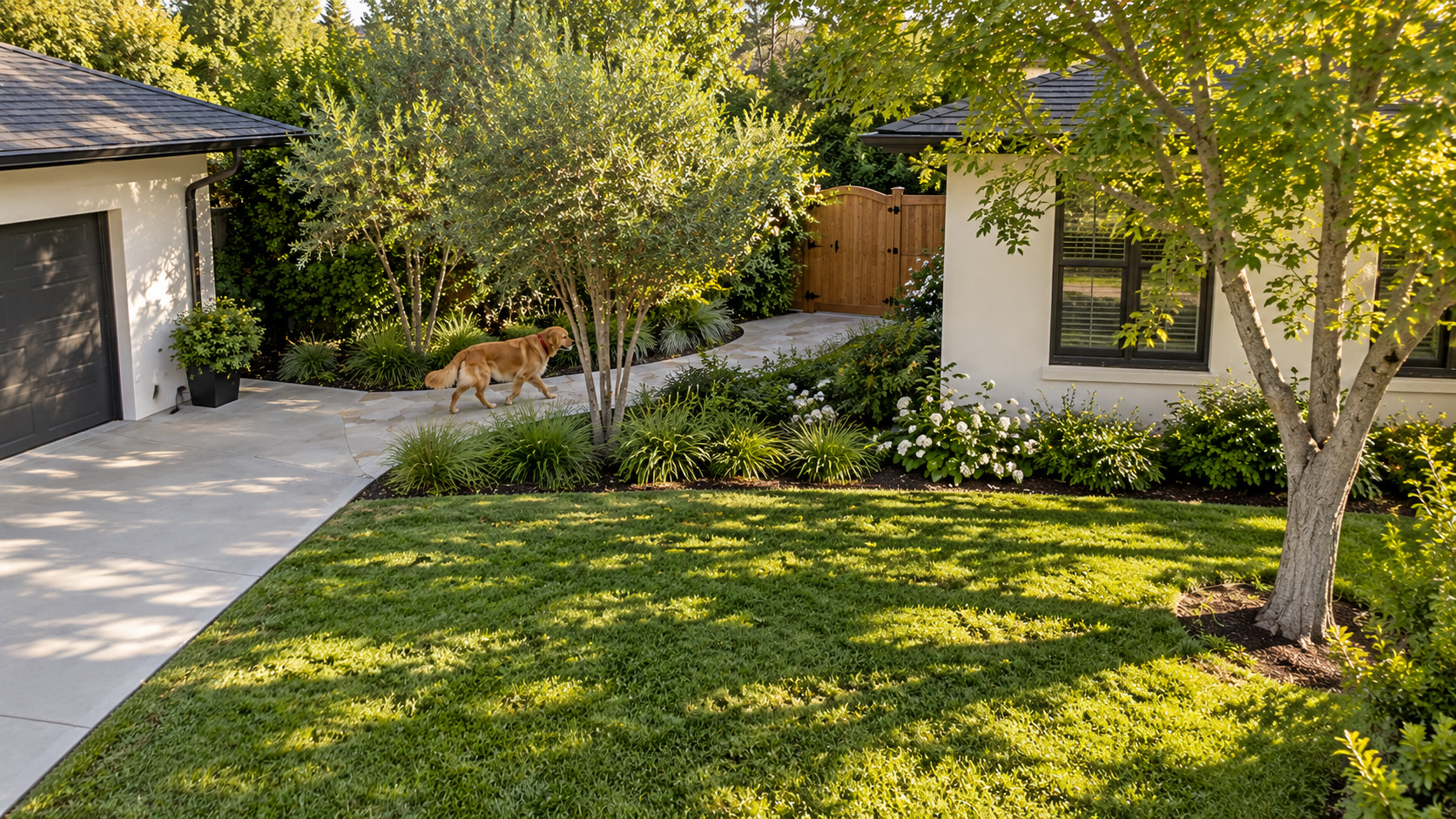
AI-generated stills of a fictional setting, shown as three moments. These are simulated viewpoints, not continuous video or synchronized real camera footage.
Each viewpoint has three photographs held for 15 seconds each in a prepared demo archive. The screenshot above was captured directly from SimpleMultiCam 0.3.77 in a fresh profile with no cameras configured. Front porch is selected in the camera wall and appears first in the timeline; the other tracks keep their relative order. Only the program controls change with your Light or Dark preference; the sample images keep their original colors.
This demonstrates the recording-review interface. It does not test live-camera recording, continuous movement, synchronization, or audio. No personal cameras, credentials, or recordings were used.
Exports & snapshots
Save a single camera, keep multiple angles together, or switch between them in a Multicam Clip—all through Save video.
Keep selected angles visible in one video. The output resolution covers the entire grid.
Follow the event with one chosen angle at a time. Preview the sequence before saving.
Save a snapshot from a camera or the recorded wall. PNG, JPEG, and clipboard options are available.
MP4 options include 720p, 1080p, and 4K. More output pixels cannot restore detail missing from the source. Sound requires recorded audio; choose no sound, sound following the selected camera, or one camera throughout. Missing sound stays silent.
If video is missing, choose a “No footage recorded” screen or review gaps before saving. The marked clip can be up to one hour. About gaps and export limits.
Setup & care
Guided camera recovery, encrypted setup backups, and in-program update checks help with everyday maintenance.
Use Help reconnect this camera or Cameras → Find missing cameras. Preview the candidate picture, then confirm before its saved address changes.
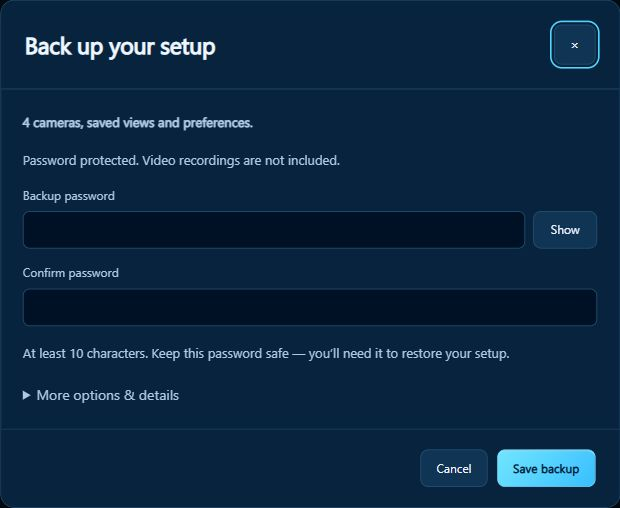
Save a password-protected backup of cameras, saved views, and preferences. Recordings are separate. A reminder helps you back up an address change after recovery.
Open Help → Check for beta updates, or use Check for updates in About. Downloading does not pause recording. Installation briefly closes and restarts the program.
Check my setup
Check the workload and connections you actually use, with separate two-minute performance and connection checks.
Keep improving
Share the task you want to accomplish and what would make it easier.
About these examples
The B34 and B36 examples show the program’s unmodified interface rendered with isolated sample data. No personal cameras, credentials, or recordings were used.
Camera-wall pictures are built-in demo photos. Recording and clip examples use AI-generated still images held in short clips; their activity marker is illustrative, not a measured detection. These examples do not establish live-camera reliability, motion accuracy, audio performance, or frame-perfect synchronization.
The Low/High comparison retains its original 0.3.55 demo frames. Diagnostic examples in Support retain their actual 0.3.75 results. Beta features remain subject to testing. Final supported hardware, camera capacity, commercial terms, and customer-release timing are still to confirm. Release status.